Use the radar map
The radar map shows where precipitation has been detected right now and over the last two hours. You can play the loop to see which way the rain is moving, switch on the National Weather Service's warnings, or switch to satellite pictures of the clouds.
#Where to find it
- Radar in the row of Weather pages opens the national map. If you have set a home place, the map opens centered on it.
- A place's Radar tab opens a map centered on that place, with a pin and its name.
- The overview, a place's Today page and a state's page each have a small map with an arrows button and a Full map link that open the full one.
#The controls
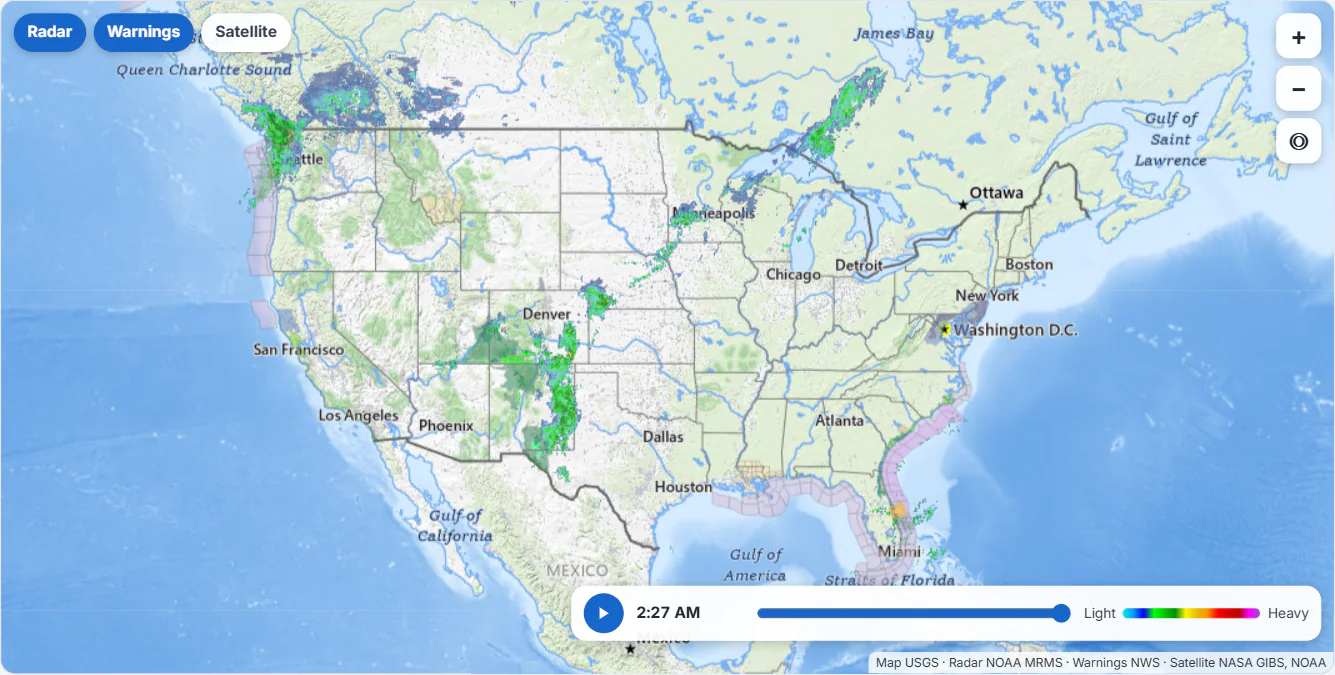
The national radar. Layers are at the top left, zoom at the top right and the time bar along the bottom.
- 1Layers: radar, warnings, satellite
- 2Zoom in, zoom out, my location
- 3Play the last two hours
- 4Drag to a moment
- 5Light to heavy precipitation
- Layers. Radar, Warnings and Satellite are buttons you switch on and off. A blue button is on.
- Zoom and my location. + and − zoom in and out. The circle button, on the full map, centers the map on your position and zooms in. Your browser asks for permission first, and the position stays in your browser.
- Play. The play button loops the radar images from the last two hours. The button becomes a pause button while it plays.
- Time slider. Drag it to step to one moment. The time beside the play button is the time of the picture shown, in your own time.
- The scale. Light to Heavy shows what the colors mean.
You can also move the map by dragging it, zoom with a double-click (hold Shift and double-click to zoom out), and zoom with the mouse wheel on the full map. On a small map, click it first or hold Ctrl (Cmd on a Mac) to zoom with the wheel, so that scrolling the page does not zoom the map by accident. On a touch screen, pinch to zoom and drag to move.
When the map has focus, you can use the keyboard: + and - zoom, the arrow keys move the map and Space plays or pauses the loop.
#What the layers show
- Radar is the National Oceanic and Atmospheric Administration's radar mosaic, built from the country's weather radars, with a new picture about every two minutes. It shows where precipitation has been detected, not where it will be. Colors run from light precipitation (blue and green) through heavy rain (yellow, orange and red) to hail and the most intense storm cores (magenta).
- Warnings are the National Weather Service's active watches, warnings and advisories, drawn in the colors weather.gov uses. See Weather alerts.
- Satellite replaces the map with a satellite picture of the clouds: GOES imagery over the Americas, the Himawari satellite over Asia and the Pacific, and the day's satellite image elsewhere.
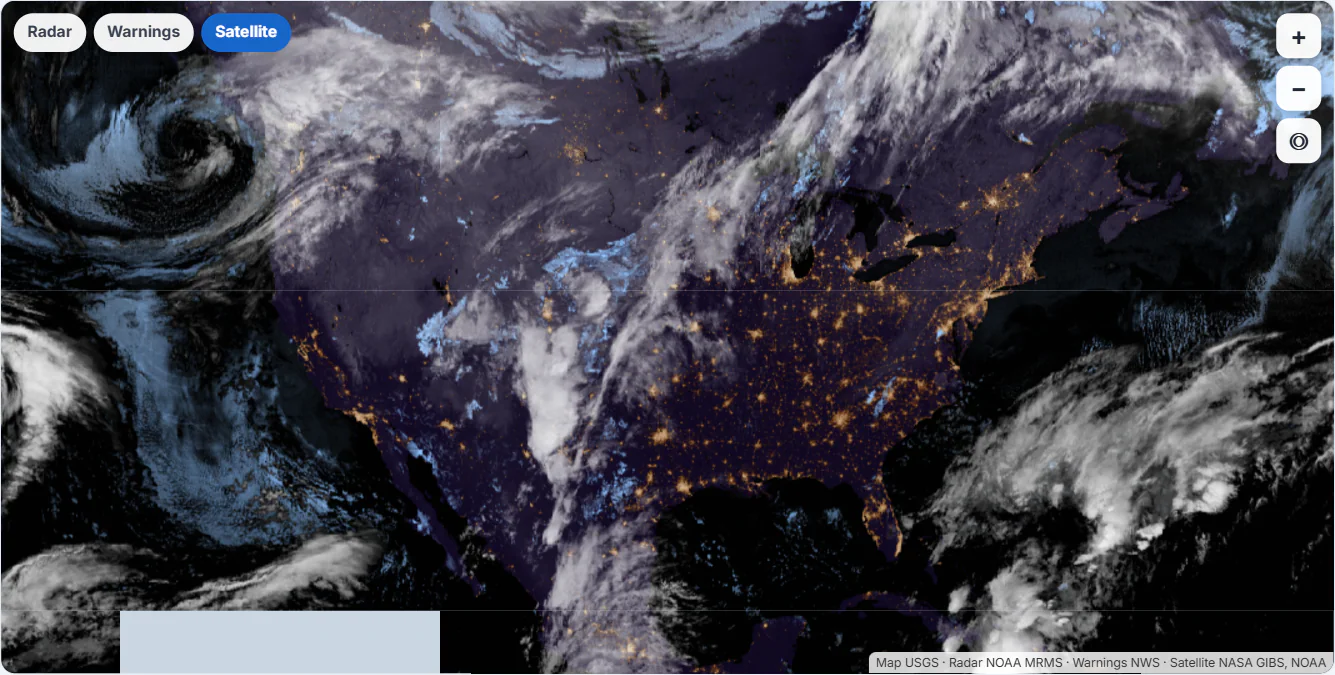
With Radar and Warnings off and Satellite on, the map shows clouds from space.
- 1Switch layers on and off
A line of text at the bottom right of the map names its sources. If the radar images are more than 25 minutes old, a note on the map says how old.
#A place's radar
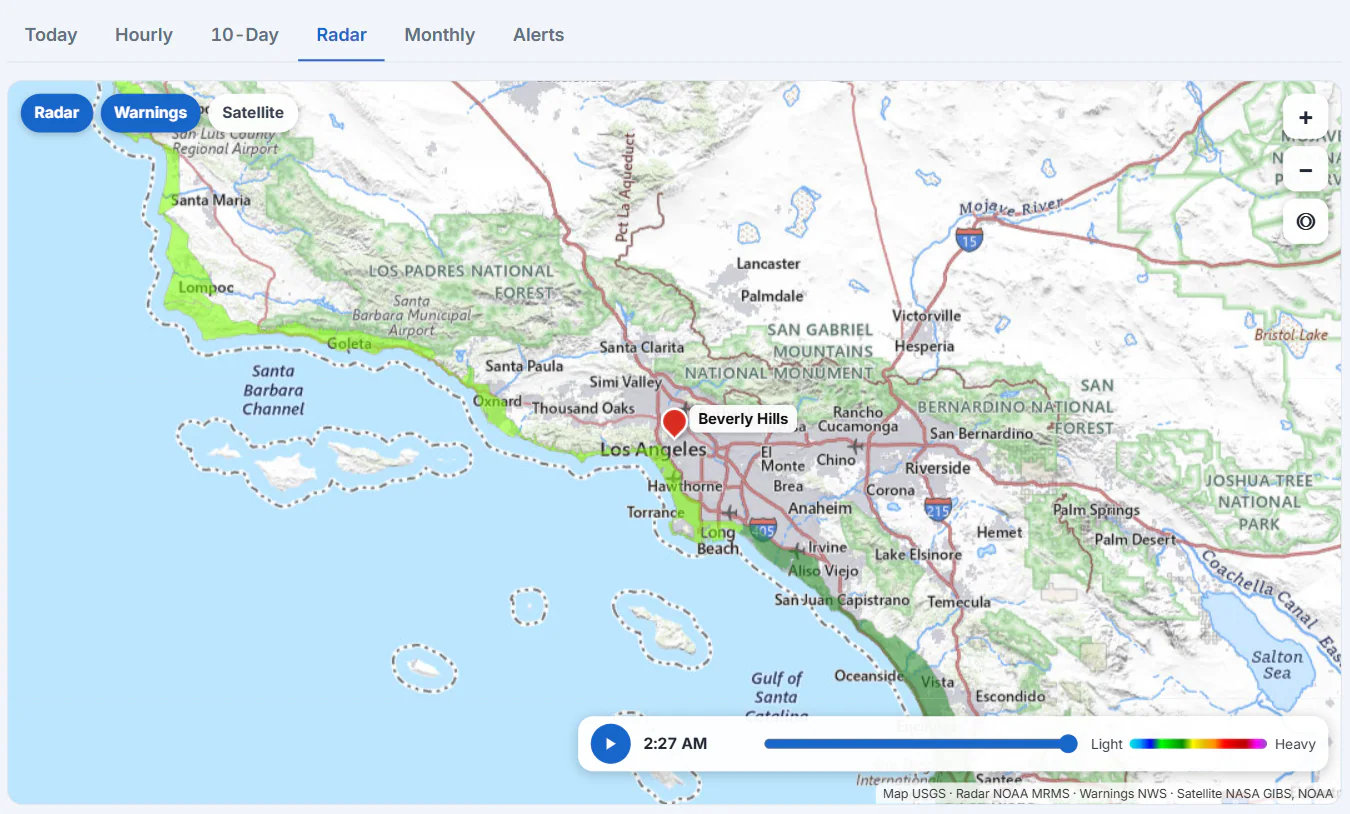
A place's Radar tab: the map is centered on the place, with its pin and name.
- 1The place you chose
- 2Layers
- 3You are on the Radar tab
Under the map, a Now in box repeats the current conditions for the place, and About this map explains the layers. The radar and warnings layers are for places in the United States. For a place elsewhere, the map shows satellite imagery and the place itself, and you can zoom a little less far. See Read a place's forecast page.
The national radar page also has an Active alerts box: the kinds of alert in effect, with a count of each.
#Common questions
Is the radar a forecast?
No. It shows what has already been detected over the last two hours. A forecast says what is expected next.
Why is a part of the map blank?
There may be no precipitation there, or no radar covers it. The radar mosaic covers the United States and some of its territories.
Why is there no time bar or play button?
The bar appears when the Radar layer is on and the map has the list of picture times. If the layer is off, or the list could not be loaded, the bar is hidden. Turn Radar on, or reload the page.
Why can't I zoom with my mouse wheel on a small map?
The wheel scrolls the page unless you click the map first or hold Ctrl. A message on the map says so.
What do the colors mean?
They run from light (blue, green) to heavy (yellow, orange, red) to the most intense (magenta), as the scale on the map shows.